
Activation Guide
Office 2021 Professional Plus Installation & Activation Guide
Jul
Office 2021 Professional Plus Installation & Activation Guide
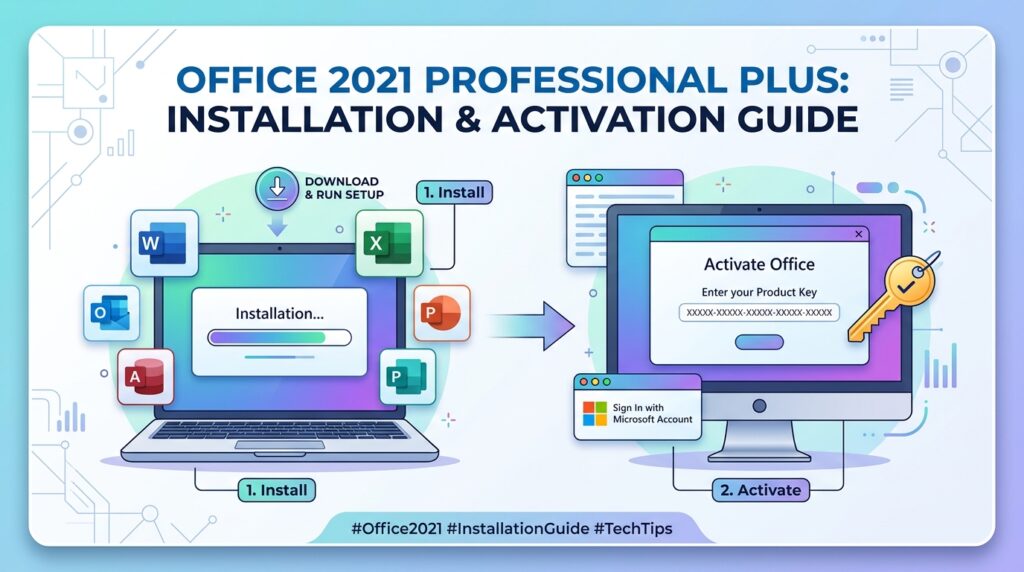
Installing and activating Microsoft Office 2021 Professional Plus is a straightforward process when you have a genuine product key. Whether you have purchased a new digital license or need to reinstall Office on your computer, this guide will walk you through every step, from redeeming your product key to completing activation successfully.
Office 2021 Professional Plus includes powerful productivity applications such as Microsoft Word, Excel, PowerPoint, Outlook, OneNote, Access, and Publisher, making it an ideal choice for professionals, students, businesses, and home users. By following this guide, you can install Office correctly and enjoy all its premium features.

How to Install Microsoft Office 2021 Professional Plus
Installing Office 2021 Professional Plus begins with redeeming your product key and downloading the official installation files from Microsoft. Always download Office directly from Microsoft’s official servers to ensure you receive the latest version, security updates, and a genuine installation package.
Before you begin, make sure you have:
- A genuine Office 2021 Professional Plus product key
- A Microsoft account
- A stable internet connection
- Administrator access to your computer
- Sufficient storage space on your hard drive
Once these requirements are met, you are ready to begin the installation.

Step 1 – Redeem Your Office 2021 Product Key
The first step is redeeming your 25-character Office product key.
Visit the official Microsoft Office setup website.
Sign in using your Microsoft account. If you do not already have one, create a new Microsoft account before continuing.
Enter your 25-character product key exactly as provided. Microsoft will verify the license and associate it with your account.
After verification:
- Select your preferred language.
- Choose your region if prompted.
- Click Redeem to add Office 2021 Professional Plus to your Microsoft account.
Once redeemed, your Office license remains linked to your account for future installations.
Step 2 – Download and Install Office 2021 Professional Plus
After redeeming your license, download the Office installer.
Microsoft offers both:
- 64-bit Office (Recommended)
- 32-bit Office
For most modern computers, the 64-bit version provides better performance and supports larger files and advanced applications.
Download the installer and open the downloaded file.
Run Setup.exe.
The installer will automatically download and install all Office applications, including:
- Microsoft Word
- Microsoft Excel
- Microsoft PowerPoint
- Microsoft Outlook
- Microsoft OneNote
- Microsoft Access
- Microsoft Publisher
The installation process may take several minutes depending on your internet speed and computer performance.
Once installation is complete, you will see a confirmation message indicating that Office has been installed successfully.
Step 3 – Open an Office Application
After installation, launch any Office application to begin activation.
Click the Start menu and search for one of the Office applications, such as:
- Microsoft Word
- Microsoft Excel
- Microsoft PowerPoint
Open the application.
During the first launch, Microsoft may ask you to accept the license agreement or sign in with the Microsoft account used to redeem your product key.
Complete the prompts to continue.
Step 4 – Activate Microsoft Office 2021
Most Office installations activate automatically when your computer is connected to the internet.
After opening an Office application, Microsoft will verify your digital license online.
If activation is successful, no further action is required.
You can confirm activation by opening:
File → Account
You should see a message indicating that Microsoft Office Professional Plus 2021 is activated.
Complete Office Activation by Phone (If Required)
In some situations, automatic online activation may not be available. Microsoft provides a telephone activation method.
Open the Microsoft Activation Wizard.
Choose I want to activate the software by telephone.
Select your:
- Country
- Region
The wizard will display your Installation ID.
Visit Microsoft’s activation support page and select:
- Activate a Microsoft Product
- Microsoft Office
- Windows
- Office 2021
Enter your Installation ID.
Microsoft will generate a Confirmation ID.
Enter the Confirmation ID into the Activation Wizard.
Click Next to complete activation.
Your Office 2021 Professional Plus installation is now activated.
Included Applications in Office 2021 Professional Plus
Microsoft Office 2021 Professional Plus includes a complete suite of productivity tools designed for personal and professional use.
Microsoft Word
Create professional documents, letters, reports, and resumes with powerful formatting tools and collaboration features.
Microsoft Excel
Manage spreadsheets, perform calculations, create charts, analyze data, and automate workflows using formulas and functions.
Microsoft PowerPoint
Design engaging presentations using animations, templates, transitions, and multimedia support.
Microsoft Outlook
Manage emails, calendars, contacts, and meetings efficiently from one application.
Microsoft OneNote
Organize notes, ideas, research, and projects across multiple devices.
Microsoft Access
Build and manage databases with powerful reporting and automation features.
Microsoft Publisher
Create brochures, business cards, flyers, newsletters, and marketing materials with professional layouts.
Troubleshooting Office Activation
Although Office activation is usually quick and automatic, you may occasionally encounter activation issues.
Invalid Product Key
If Microsoft reports that your product key is invalid:
- Check for typing mistakes.
- Ensure you entered the complete 25-character key.
- Verify that the key is for Office 2021 Professional Plus.
- Confirm that the license has not already been redeemed on another Microsoft account.
Office Cannot Connect to Activation Servers
If activation fails because Microsoft cannot be reached:
- Check your internet connection.
- Disable any VPN temporarily.
- Restart your computer.
- Try activating again later.
Product Already Associated with Another Account
Office licenses are generally linked to the Microsoft account used during redemption.
Sign in using the same Microsoft account originally used to redeem the product key.
Benefits of Microsoft Office 2021 Professional Plus
Office Professional Plus provides powerful tools for productivity and business.
Benefits include:
- Lifetime license (depending on the license purchased)
- No monthly subscription
- Modern user interface
- Improved performance
- Enhanced security
- Better collaboration tools
- Advanced Excel functions
- Professional Outlook email management
- Regular Microsoft security updates
- Offline access after installation
System Requirements
Before installing Office 2021 Professional Plus, verify that your computer meets Microsoft’s minimum requirements.
Recommended specifications include:
- Windows 10 or Windows 11
- Dual-core processor
- 4 GB RAM or more
- At least 4 GB of available storage
- Stable internet connection
- Microsoft account
- Administrator privileges
Meeting these requirements helps ensure smooth installation and reliable performance.
Tips Before Installing Office 2021
To avoid installation problems, follow these recommendations:
- Uninstall older Office versions if necessary.
- Save your work and close all applications before installation.
- Keep your product key readily available.
- Use a reliable internet connection.
- Install the latest Windows updates.
- Temporarily disable antivirus software if it interferes with the installation (re-enable it afterward).
These steps can reduce the likelihood of installation or activation issues.
Frequently Asked Questions
Can I install Office 2021 Professional Plus on multiple computers?
The number of devices depends on the license you purchased. Review your license terms for installation limits.
Do I need a Microsoft account?
Yes. A Microsoft account is required to redeem your Office product key and manage future installations.
Is an internet connection required?
Yes. Internet access is needed to download Office, redeem your product key, and complete online activation.
Can I reinstall Office after formatting my PC?
Yes. Simply sign in to the Microsoft account associated with your Office license and download the installer again.
How long does installation take?
Installation usually takes between 10 and 30 minutes, depending on your internet speed and computer performance.
What should I do if activation fails?
Verify your product key, ensure you’re signed in with the correct Microsoft account, and try online activation again. If needed, use Microsoft’s telephone activation method.
Final Thoughts
Microsoft Office 2021 Professional Plus is a powerful productivity suite designed for professionals, students, businesses, and home users. By following this installation and activation guide, you can quickly redeem your product key, download the official Office installer, install all included applications, and activate your license successfully.
Always download Office from Microsoft’s official website and use a genuine product key to ensure security, reliability, and access to future updates. Once activated, you can enjoy the full capabilities of Word, Excel, PowerPoint, Outlook, OneNote, Access, and Publisher for your daily work and projects.
This article is optimized around the focus keyword “Office 2021 Professional Plus Installation Guide” and naturally incorporates related keywords such as Office 2021 Professional Plus Activation Guide, Microsoft Office 2021 Download, Office 2021 Product Key, and Install Office 2021 Professional Plus to improve SEO while providing clear, helpful instructions.
