
Activation Guide
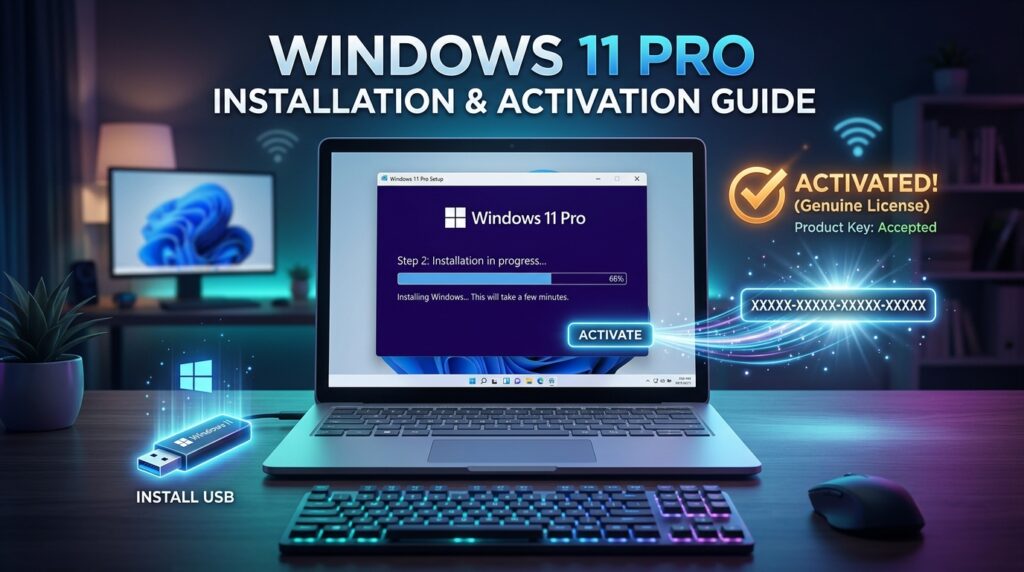
Windows 11 Pro Installation & Activation Guide
Jul
Windows 11 Pro Installation & Activation Guide
Installing and activating Windows 11 Pro is a simple process when you have a genuine product key and follow the correct steps. Whether you are setting up a new computer, upgrading from an older version of Windows, or reinstalling the operating system, this guide will help you complete the installation and activation successfully.
This guide explains how to download Windows 11 Pro from Microsoft’s official website, install the operating system, and activate it using a valid Windows 11 Pro license key.
How to Install Windows 11 Pro
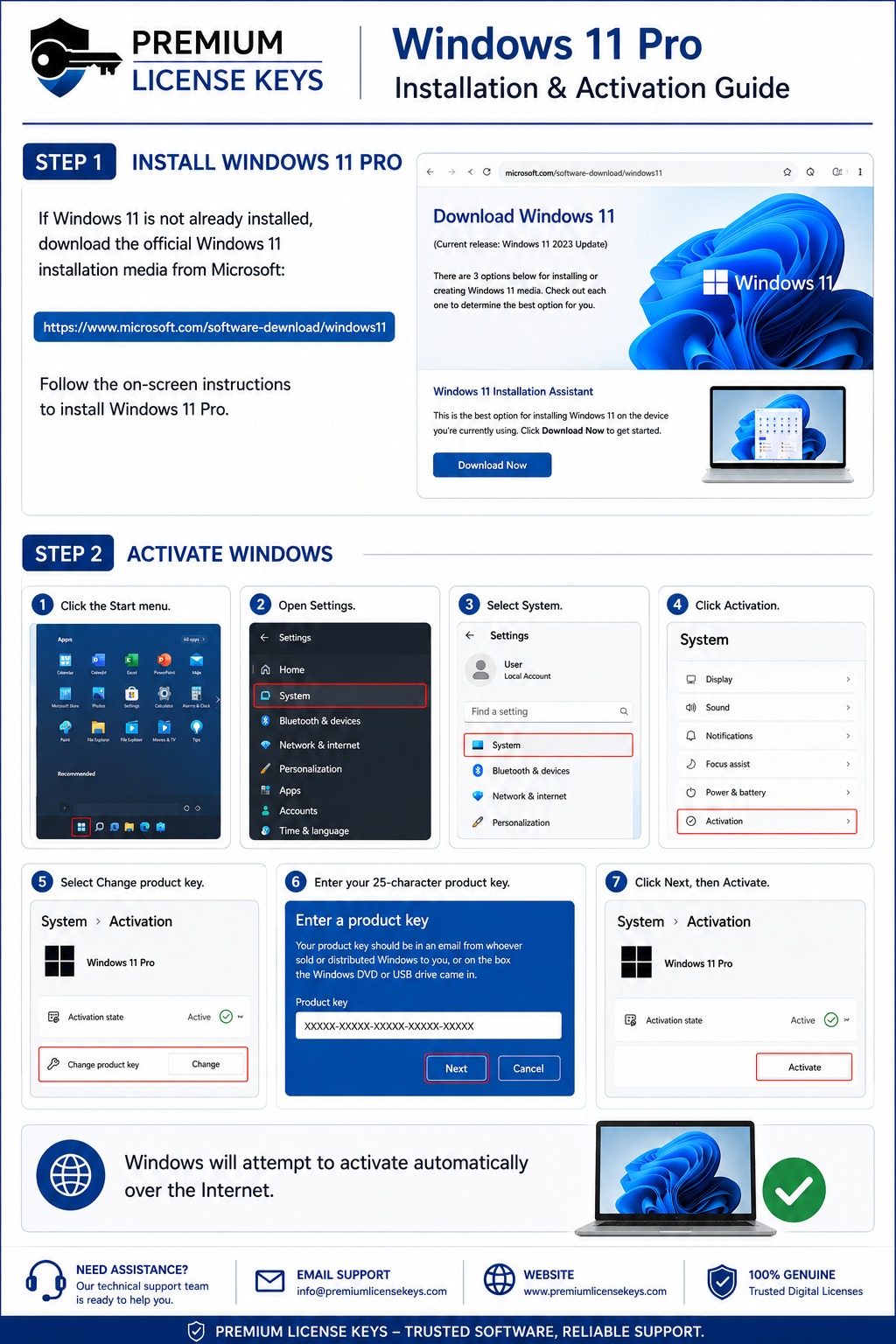
Installing Windows 11 Pro starts by downloading the official installation files from Microsoft. Always use the official Microsoft website to ensure you receive the latest version with the newest security updates and features.
Before beginning the installation, make sure your computer meets the minimum Windows 11 system requirements. You should also back up any important files if you are reinstalling Windows on an existing computer.
After confirming your device is compatible, visit the Microsoft Windows download page and download the Windows 11 Installation Assistant or create bootable installation media using a USB flash drive.
Once the installation media is ready, follow the on-screen instructions to install Windows 11 Pro on your computer.

Download Windows 11 from Microsoft
Open your web browser and visit Microsoft’s official Windows 11 download page.
Download one of the following:
- Windows 11 Installation Assistant
- Windows 11 Media Creation Tool
- Windows 11 ISO File
These options allow you to either upgrade your current PC or perform a clean installation.
Using Microsoft’s official installation files ensures maximum compatibility, security, and access to future Windows updates.
Create Installation Media
If you are installing Windows on a new computer or replacing an existing operating system, create a bootable USB drive.
The Media Creation Tool automatically downloads Windows 11 and prepares the USB drive for installation.
Once completed:
- Restart your computer.
- Boot from the USB drive.
- Follow the Windows installation wizard.
- Select Windows 11 Pro.
- Complete the installation.
Install Windows 11 Pro
The Windows Setup wizard will guide you through the installation process.
You will be asked to:
- Select your language.
- Choose your region.
- Select keyboard layout.
- Connect to the internet.
- Create a Microsoft account or local account.
- Choose privacy settings.
After installation is complete, Windows will restart several times before displaying the desktop.
How to Activate Windows 11 Pro
After installing Windows, activation unlocks all Windows 11 Pro features and confirms that your copy of Windows is genuine.
Activation usually takes only a few minutes if your computer is connected to the internet.
Open Windows Activation Settings
Click the Start button.
Open Settings.
Select System.
Click Activation.
This page displays your Windows activation status.
Enter Your Windows 11 Pro Product Key
Select Change Product Key.
A window will appear asking for your 25-character product key.
Enter the key exactly as provided.
Example:
XXXXX-XXXXX-XXXXX-XXXXX-XXXXX
After entering the key, click Next.
Windows will verify the license automatically.
Activate Windows Online
After verification, click Activate.
Windows will connect to Microsoft’s activation servers.
If your product key is valid and your computer is connected to the internet, activation will complete automatically.
A successful activation message will appear.
Your Windows 11 Pro license is now permanently activated according to the license type you purchased.
Troubleshooting Windows 11 Activation
Sometimes activation may not complete successfully. Most activation problems are easy to resolve.
Activation Failed
If Windows reports that activation failed:
- Verify your internet connection.
- Restart your computer.
- Double-check your product key.
- Ensure you selected Windows 11 Pro instead of another edition.
Invalid Product Key
If Windows reports that your key is invalid:
- Check for typing mistakes.
- Make sure the product key is for Windows 11 Pro.
- Confirm that the key has not already exceeded its activation limit if applicable to the license type.
Internet Connection Issues
Windows activation requires internet access.
If activation cannot connect to Microsoft’s servers:
- Restart your router.
- Try another internet connection.
- Disable VPN software temporarily.
- Retry activation.
Benefits of Activating Windows 11 Pro
Activating Windows provides access to all professional features and ensures that your operating system is genuine.
Benefits include:
- Regular security updates
- Full personalization options
- BitLocker drive encryption
- Remote Desktop support
- Hyper-V virtualization
- Windows Update
- Enhanced business security
- Professional management features
- Improved system stability
System Requirements for Windows 11 Pro
Before installing Windows 11 Pro, ensure your device meets the minimum system requirements.
Minimum requirements include:
- 64-bit processor
- 4 GB RAM
- 64 GB storage
- TPM 2.0
- Secure Boot
- DirectX 12 compatible graphics
- HD display (720p or higher)
- Internet connection for setup and activation
Meeting these requirements helps ensure smooth installation and optimal performance.
Tips Before Installing Windows 11 Pro
Before beginning the installation:
- Back up important files.
- Ensure your laptop is connected to power.
- Use a stable internet connection.
- Keep your Windows product key ready.
- Disconnect unnecessary external devices during installation.
- Update your BIOS or firmware if required.
These simple steps help avoid installation issues and reduce the risk of data loss.
Frequently Asked Questions
Can I install Windows 11 without a product key?
Yes. Windows 11 can be installed without entering a product key during setup. However, you will need a valid license to activate Windows and unlock all features.
Where do I enter my Windows 11 Pro product key?
Go to:
Settings → System → Activation → Change Product Key
Enter your 25-character Windows 11 Pro product key and click Next.
How long does Windows activation take?
Most activations are completed within a few minutes, provided you have a valid product key and an active internet connection.
Do I need an internet connection?
An internet connection is recommended for downloading Windows updates and completing online activation.
Is Windows 11 Pro better than Windows 11 Home?
Windows 11 Pro includes additional features such as BitLocker encryption, Remote Desktop, Hyper-V virtualization, Group Policy management, and advanced business security tools, making it suitable for professionals and businesses.
Final Thoughts
Installing and activating Windows 11 Pro is straightforward when you use Microsoft’s official installation files and a genuine product key. By following the steps in this guide, you can install Windows 11 Pro, activate your license, and enjoy all of the operating system’s professional features.
Whether you are upgrading an existing PC or setting up a new device, using a legitimate Windows 11 Pro license ensures access to security updates, enhanced performance, and long-term reliability.
This article is optimized around the focus keyword “Windows 11 Pro Installation Guide” and naturally includes related keywords such as Windows 11 Pro Activation Guide, Windows 11 Pro Product Key, Install Windows 11 Pro, and Windows 11 Activation, making it well-suited for SEO while remaining helpful and easy to read.
